This guide will help you install the Traderflow Discord bot on your server, and configure it to automatically publish your trades, competition updates, or prop certificates to any channel you want.
Prerequisites
- A Discord server (as a server owner)
- A Traderflow account (if you don't have one, sign up here)
- At least a Premium Traderflow membership
Accessing Your Bot Settings
Log into your Traderflow dashboard at app.traderflow.com and navigate to the Discord Bot section in the sidebar.
Connecting Your Discord Account
If you haven't connected your Discord account yet, you'll see a link to connect it. Click the link and follow the instructions to connect your Discord account to Traderflow.
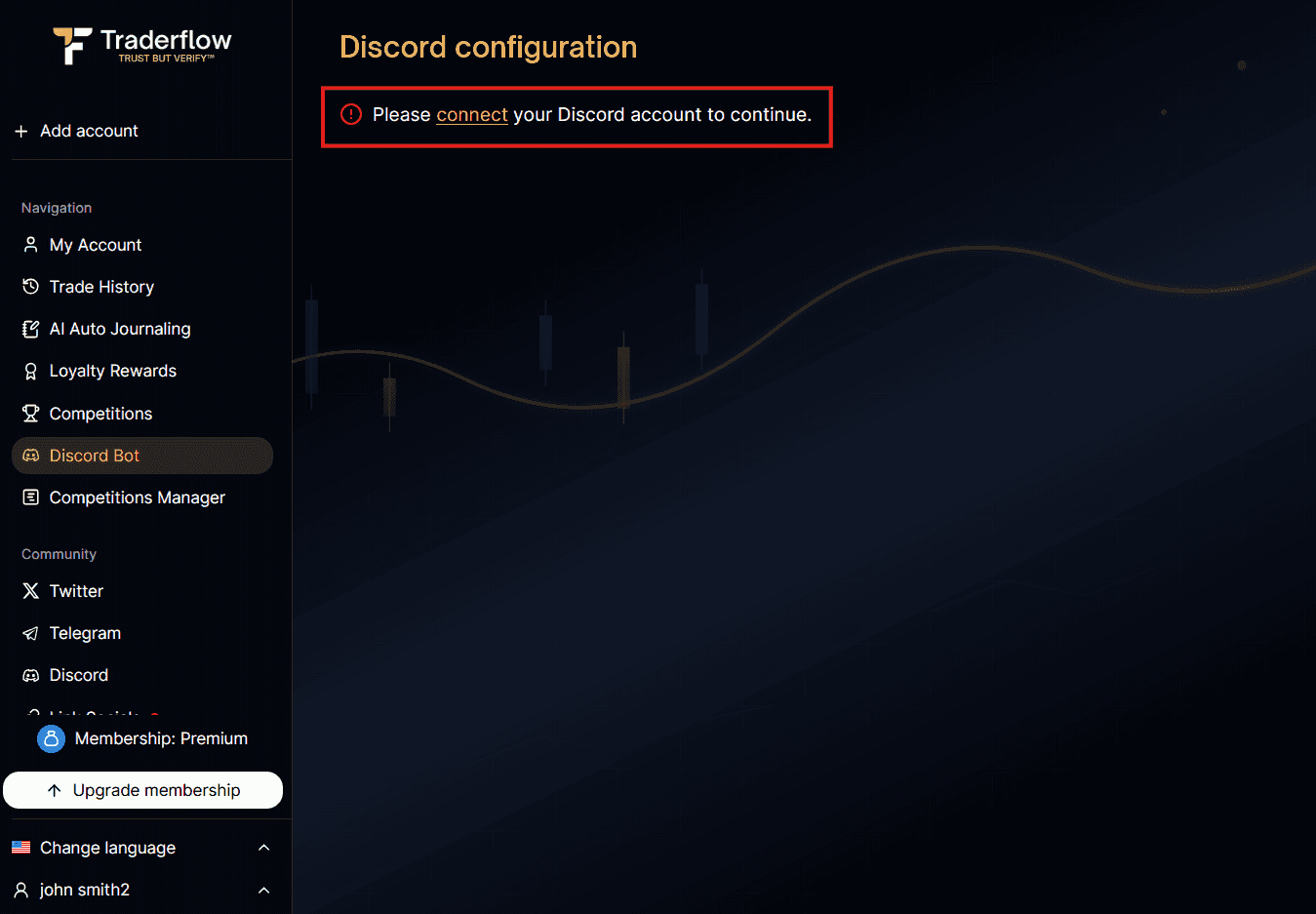
Once done, you will be redirected back to the Traderflow dashboard. You can then head over to the Discord Bot section in the sidebar once again.
Installing the Bot on Your Server
At this point, you will be able to select which Discord server you want to manage the Traderflow bot on. Select any from the dropdown, and if the bot isn't already installed on the server, you will notice the following message:
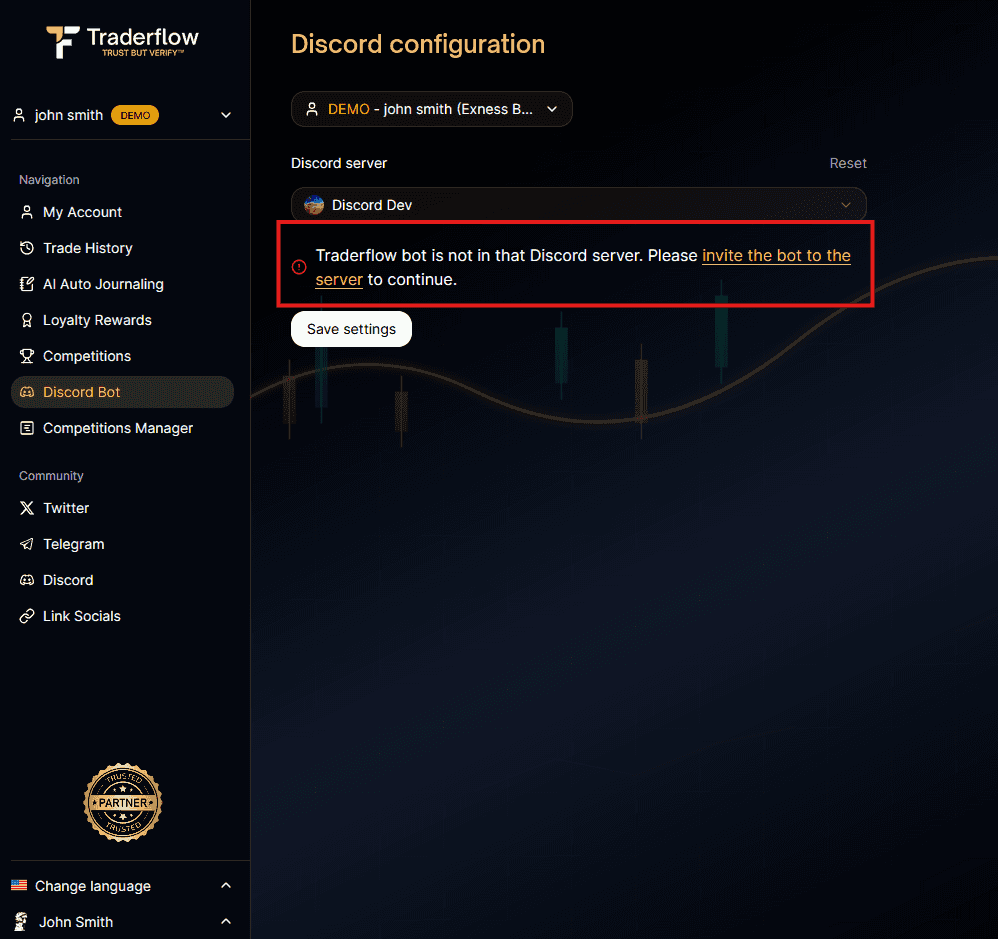
Click on the invite link, which will prompt you to install the bot on the server.
NOTE: If you are not the server owner, you will not be able to see the Discord server in the dropdown. In this case, you can ask the server owner to invite the bot to the server instead.
Configuring the Bot
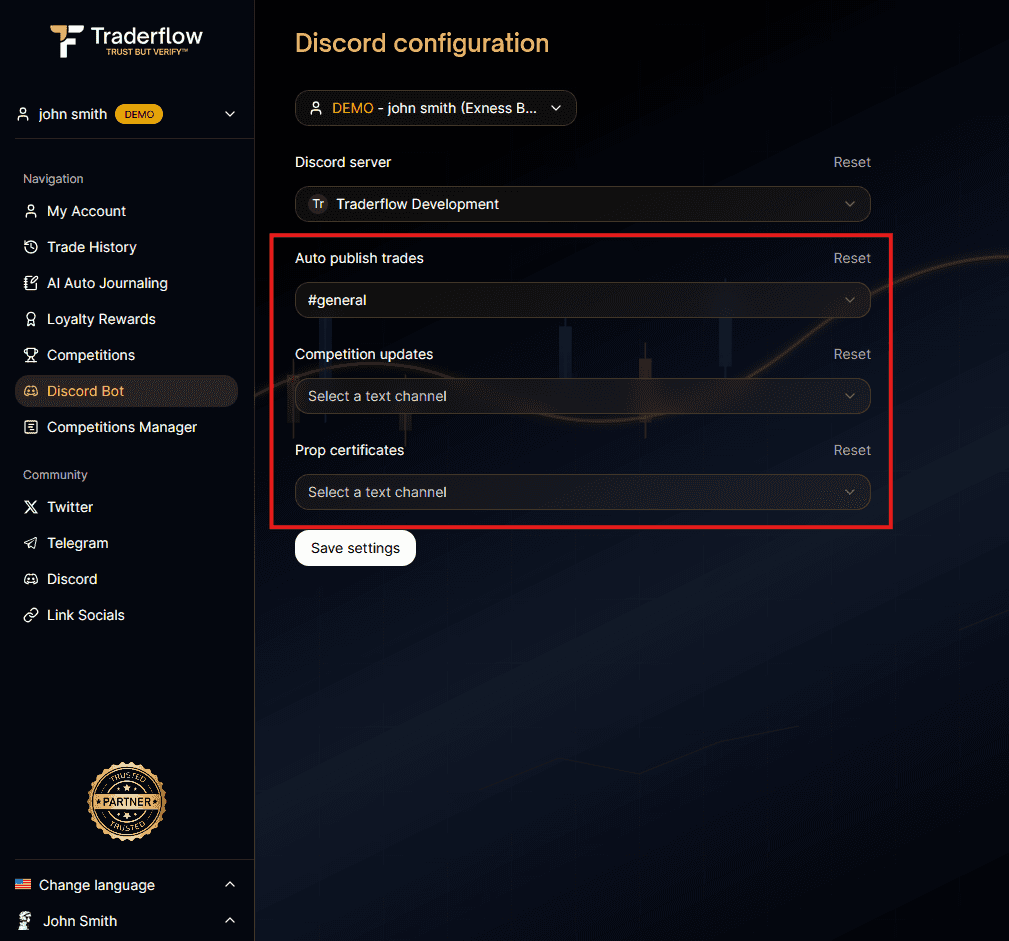
Once the bot is installed on the server, you will be able to configure it to automatically publish your trades, competition updates, or prop certificates to any channel you want through any of the 3 dropdowns. Select the channel you want to publish to, and once configured, save your changes by clicking the Save settings button.
Selecting the Trading Account to Publish For
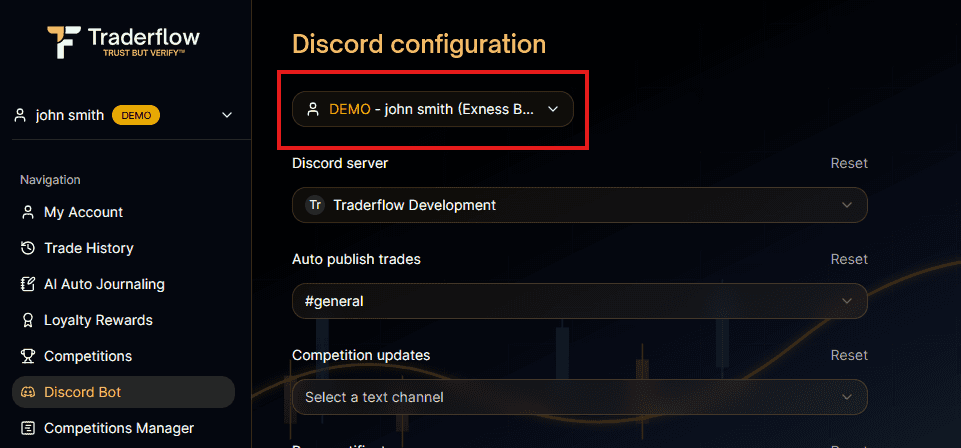
Right above the server select input, you will see a dropdown to select the trading account you want to publish your trades, competition updates, or prop certificates for.